Guides2 min read
Claude Code notch workflow: approvals and finished tasks
Use Agent Notch to follow Claude Code sessions, handle approval requests, and return to finished work.
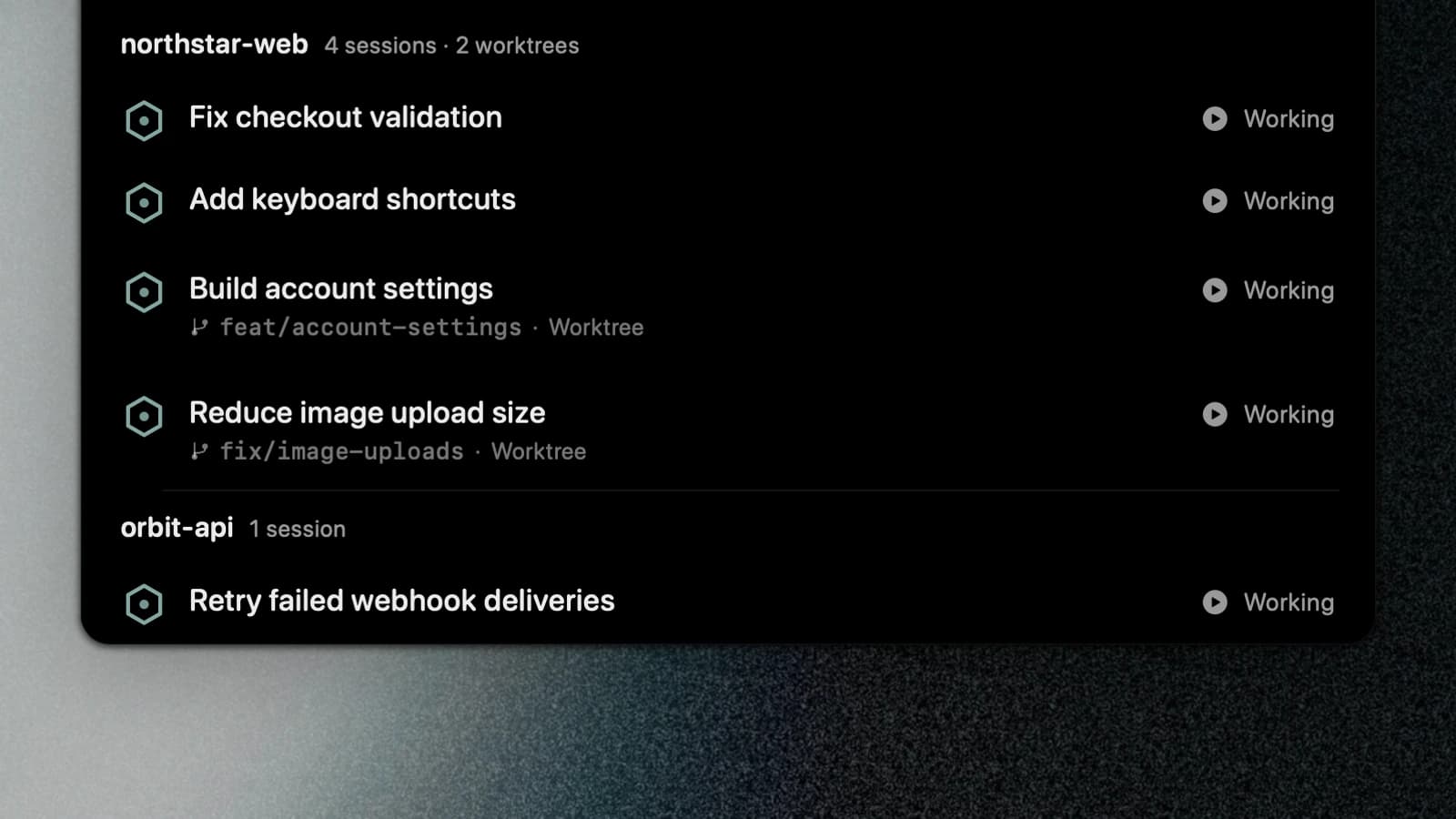
A Claude Code notch workflow keeps waiting requests visible while you work in another window. Agent Notch brings session status and supported approval replies to the top of your Mac screen.
For a broader overview, start with the code notch guide for Mac.
Connect Claude Code
- Open Agent Notch on your Mac.
- Go to Settings → Agents and find Claude Code.
- Check its session-reading, integration, and approval-reply controls.
- Start a Claude Code task and find its session in the notch.
The Claude Code integration page explains the session information available.
Handle a waiting request
Open the notch when a session needs your attention. Read the requested action before choosing your reply.
Use the approval controls when the integration supports that request. Return to Claude Code when the task needs more context or further discussion.
Separate parallel tasks
Enable Group by project in Settings → Panel for sessions in the same repository. Use conversation titles to distinguish tasks while keeping branch and worktree information visible.
The project grouping guide includes screenshots of these controls.
Return to finished work
Unread completions remain visible when their sessions become idle. Click the session to open it and clear its unread mark.
Review the changes and run the relevant checks before accepting the result. A completion notification tells you the run finished; you still need to verify its work.
Keep the closed notch quiet
Choose Notifications only in Settings → Panel to show requests and unread completions. Use Also show work if you also want the running session count.
See Agent Notch features for approval, question, and completion examples.