Guides2 min read
Code notch for Mac: monitor coding agents with Agent Notch
Looking for a code notch app? Track coding agents, approvals, and finished work with Agent Notch.
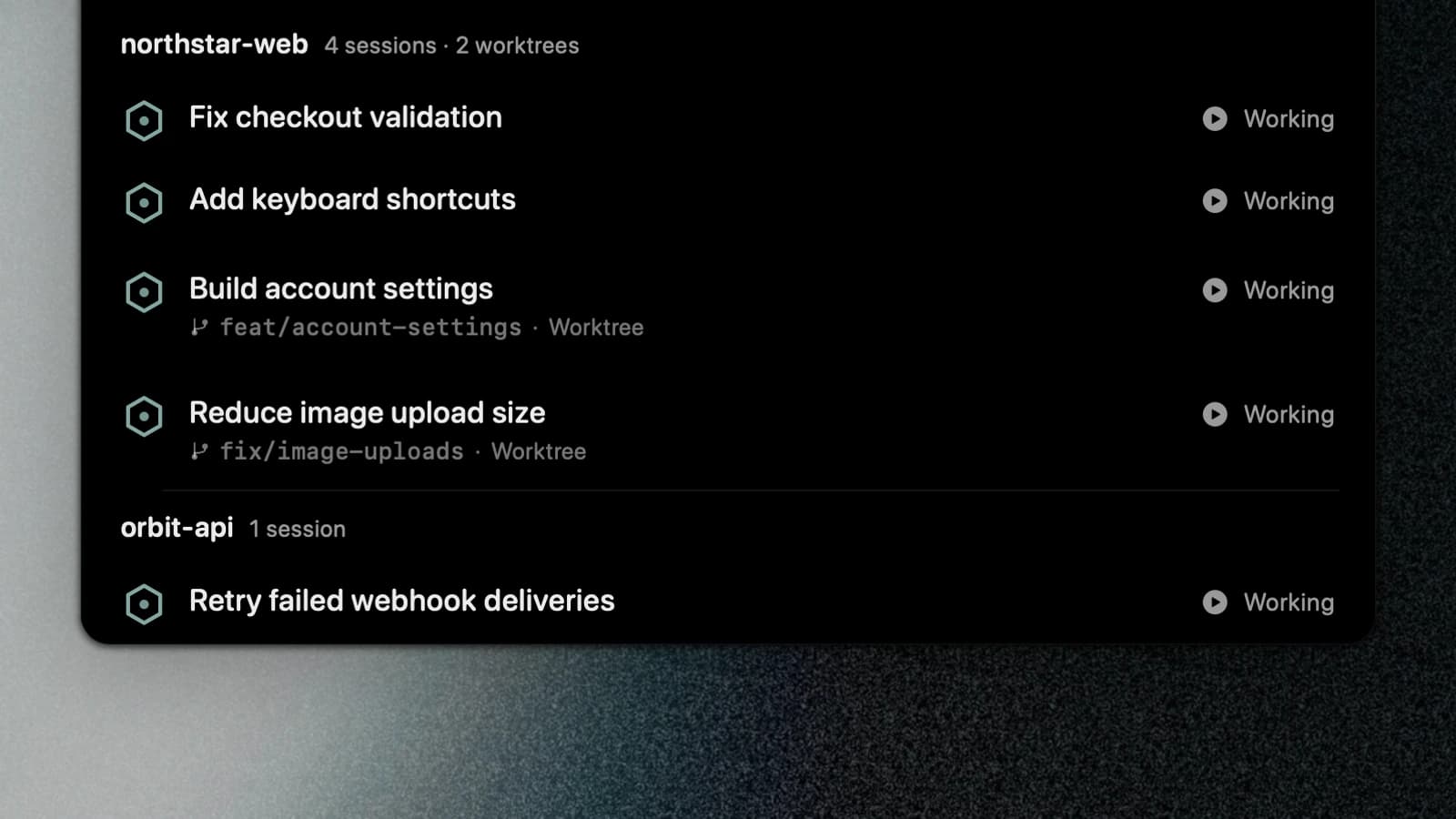
Looking for a code notch app to keep your coding agents visible on Mac? Agent Notch shows running sessions, approval requests, and finished work at the top of your screen.
Keep your editor open while checking which agent needs attention.
What can you see in the notch?
- Running sessions across supported coding agents.
- Requests waiting for your approval or answer.
- Finished work you have not opened yet.
- Project groups containing related branches and worktrees.
See the feature screenshots for examples of each state.
Start with one coding session
- Download Agent Notch and open it on your Mac.
- Open Settings → Agents to check your provider's integration controls.
- Start a session in a supported coding agent.
- Open the notch to find that session.
- Select the session when you need to return to its work.
Start with the Claude Code guide or Codex guide. Codex sessions in VS Code and Xcode are covered in the IDE support post.
Keep several projects readable
Enable Group by project in Settings → Panel when several sessions share a repository. Branches and worktrees remain visible within their project group.
Choose conversation titles first to tell tasks apart when their folder names match. The project grouping post shows these settings.
Choose what stays visible
Use Notifications only to keep requests and unread completions in the closed notch. Choose Also show work to include the running session count.
Open the panel when you want the full session list.
Can you handle approvals there?
Claude Code, Codex, and OpenCode have controls for approval replies in Settings → Agents. Check the relevant integration before relying on replies from the notch.
The Claude Code notch workflow walks through requests and finished tasks.